01
Zinedock and Zinedock Z9X
Zinedock 1.1.0 and later (the Z9X 8K) and Zinedock Z9X 1.0.7 and later (the original Z9X). Your Zidoo shows an address and a six-digit code; a computer or phone on the same home network opens the address, you type the code, and you are in.
- On the TV, open Setup → Set up from a computer. It shows an address, a QR code and a code.
- On a computer or phone on the same Wi-Fi or network, open that address in a browser (or scan the QR code with a phone) and enter the code.
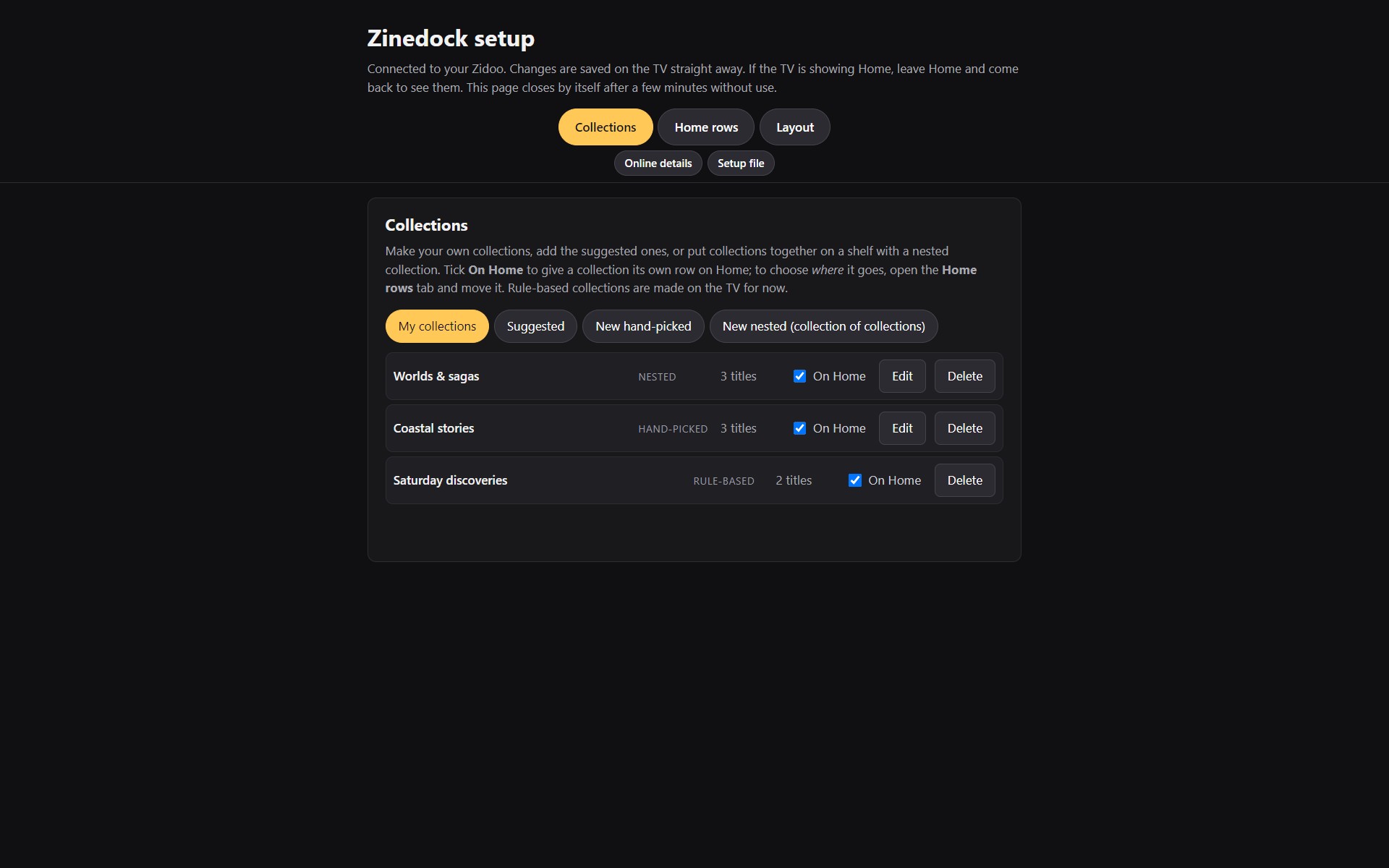
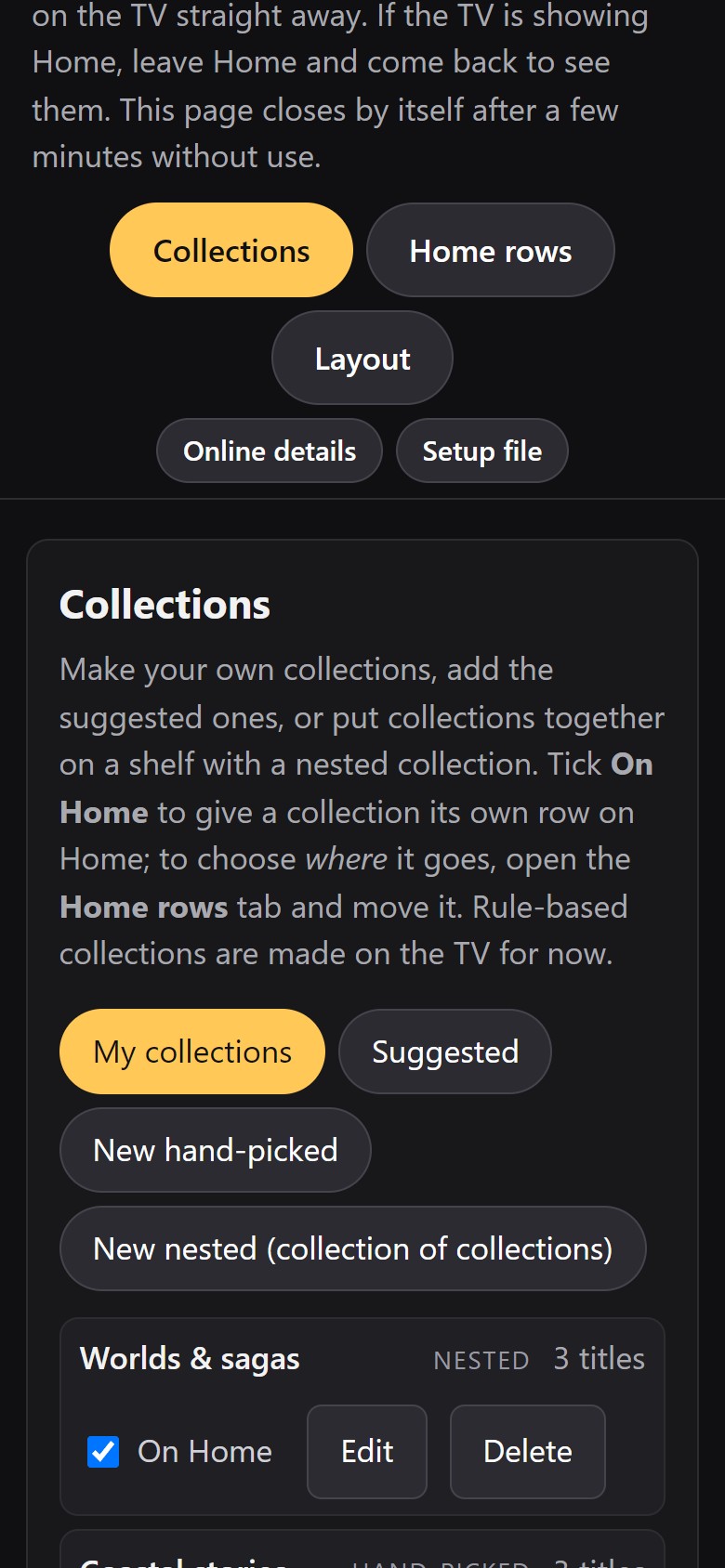
- Pick a tab (Collections, Home rows or Layout, with Online details and Setup file just below) and make your changes. They are saved on the TV as you go.
- When you are done, press Close computer setup on the TV, or just leave it; it closes by itself after ten minutes without use.
What you can do there
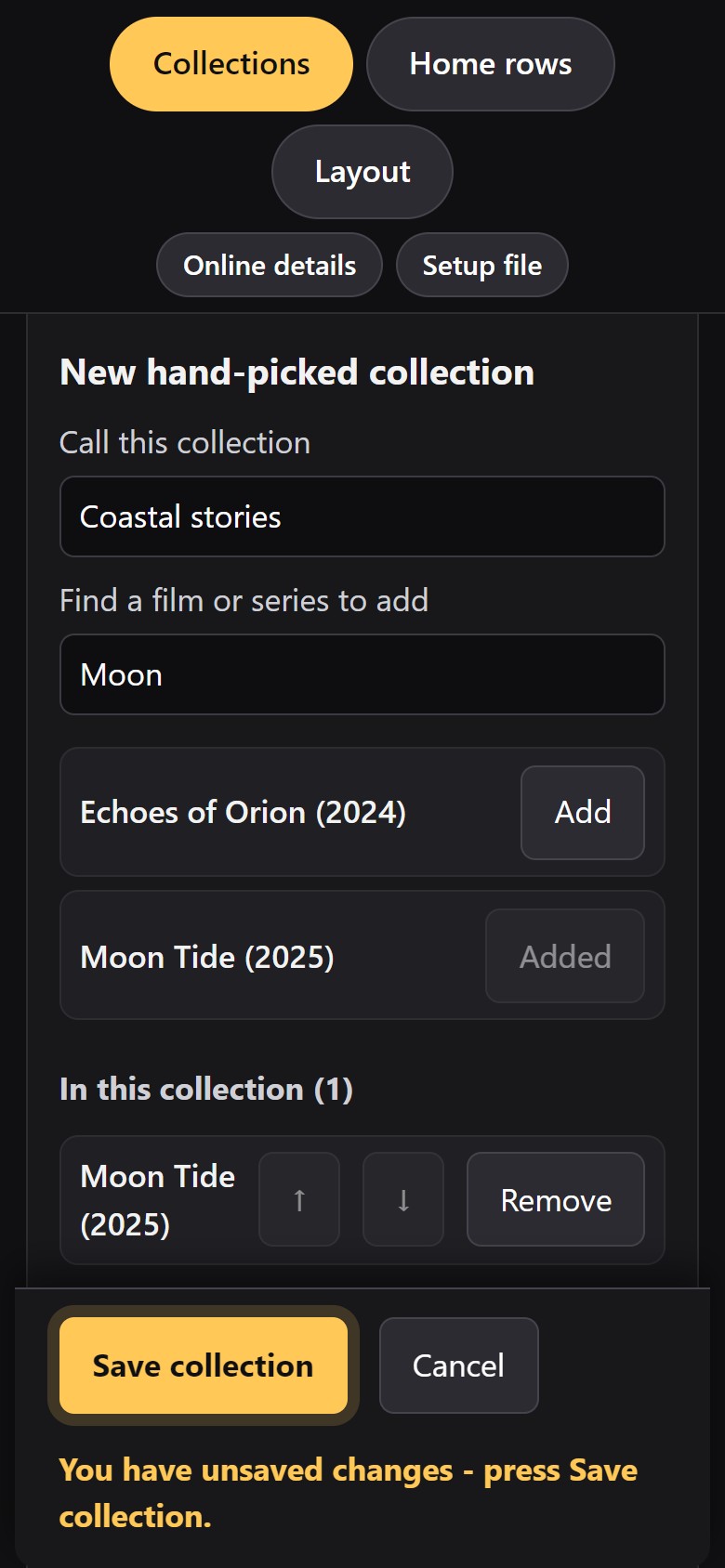
- Collections. Make hand-picked collections with a film search, add Suggested collections, or group collections and Home Theater franchises inside a nested collection. On the 8K, rule-based smart collections are made on the TV; its browser page does not yet edit their rules. Tick On Home to give a collection its own row. A new collection lands at the top of Home, row 1, so you can find it. To put it somewhere else, go to Home rows.
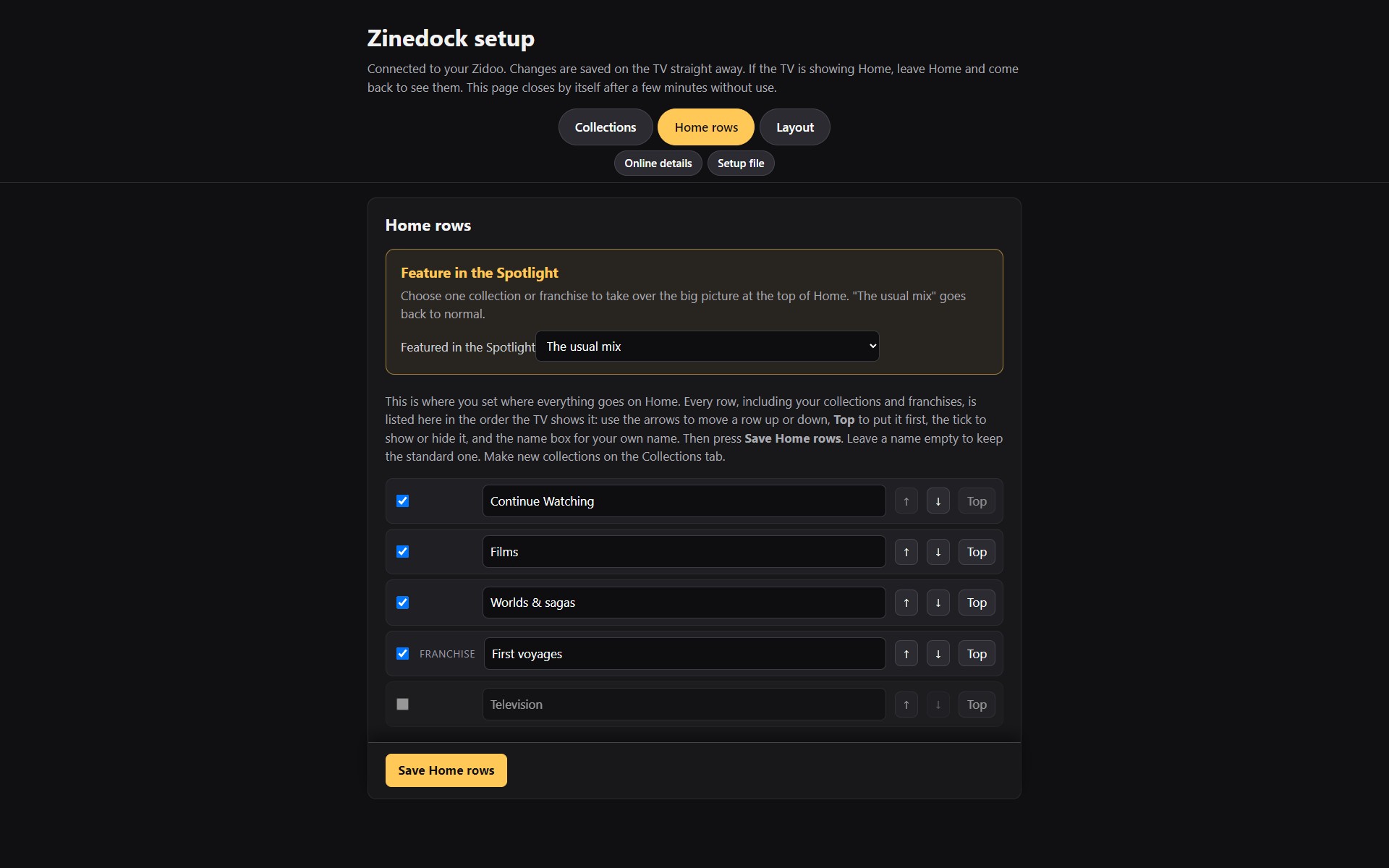
- Home rows. This is where you set where everything goes. Every Home row, including each collection you ticked On Home, is listed in the order the TV shows it: move rows up or down, send one to the top, show or hide it, and give it your own name.
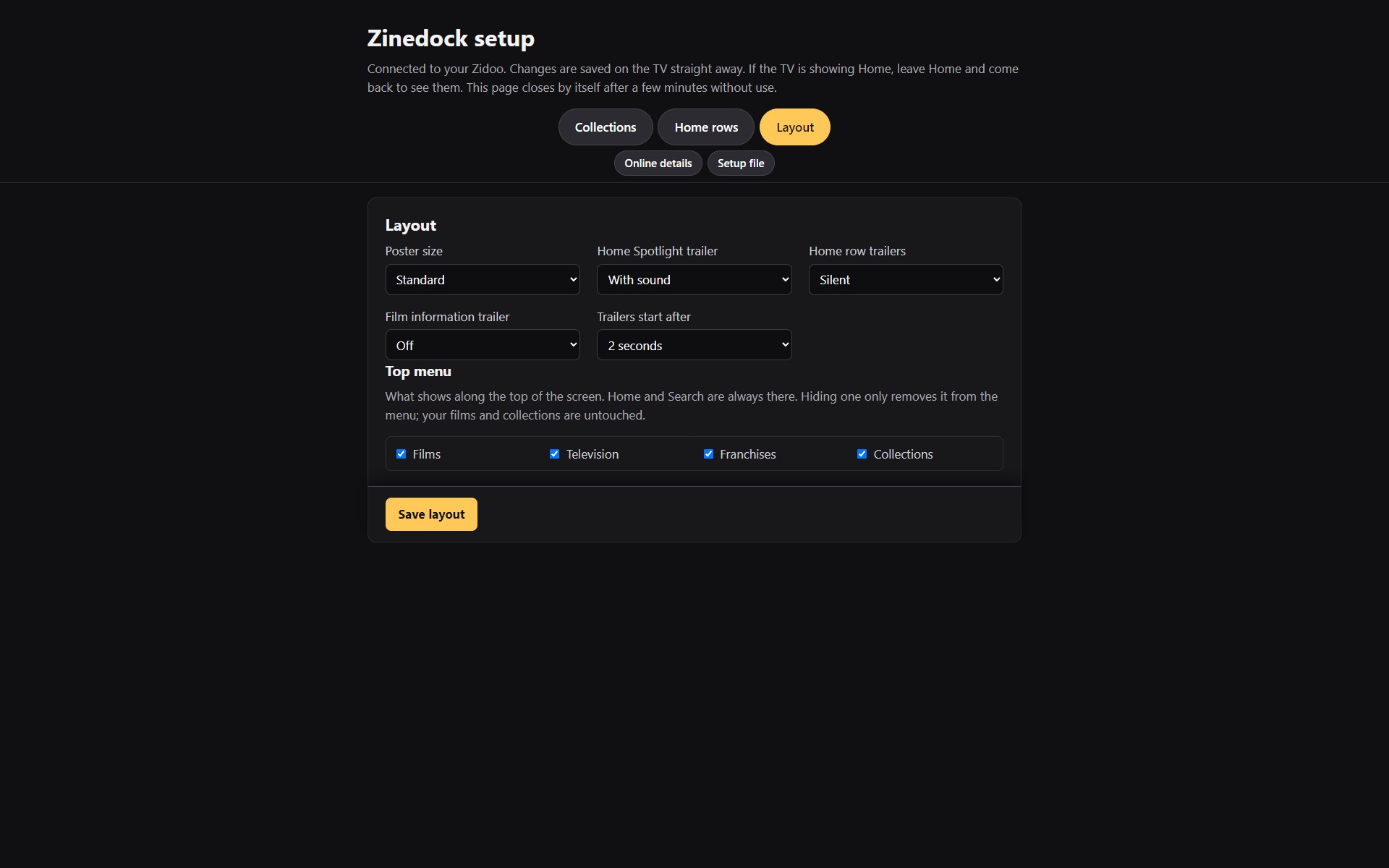
- Layout. On the Z9X 8K: the Spotlight (shown or hidden, the recess, a featured collection, seasonal films and backdrop), the look (background, poster size, Play animation, pause card), trailers and the top menu. On Zinedock Z9X: poster size, and trailers for the Spotlight, Home rows and film pages.
- Online details. Paste your own free TMDB key if you want one (Zinedock has TMDB built in; Zinedock Z9X needs your own); it is checked, saved on the Zidoo, and never shown again.
- Setup file. Download your whole setup as one file, a backup or a way to copy it to another Zidoo, and load it back later. It never contains your TMDB key.
On a phone it works too
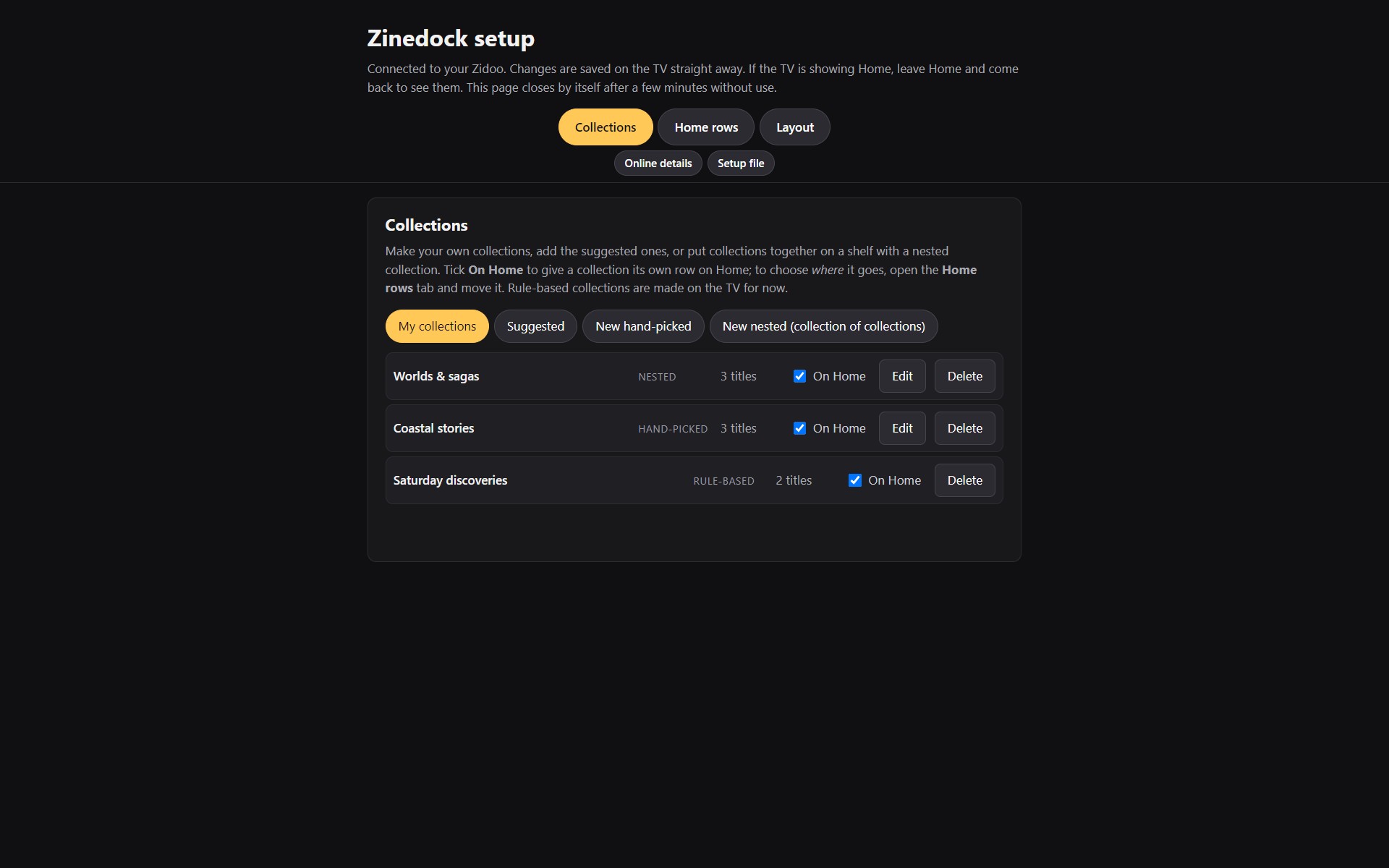
The page rearranges itself for a phone, with the same tabs along the top and bigger buttons.
02
Kinostrata
For Kinostrata running in your home container or desktop app: open its Kinostrata address in a browser on your home network. Since Kinostrata 4.10.5, the TV and browser share the same four Setup tabs: Layout, Collections, Trailers and Settings.
Layout → Libraries chooses which libraries this profile uses. Layout → Top menu shows or hides tabs. Layout → Home rows shows, hides and reorders shelves. You can click controls, type into fields and move rows with the on-screen arrow buttons. Keyboard arrows also work. These choices belong to the profile you’re using.
Direct TV mode on Fire TV or Shield: use the TV remote for setup. Its local setup page cannot be opened from a phone or computer, and it does not offer hosted browser setup. The Plex sign-in QR code is for linking your Plex account.
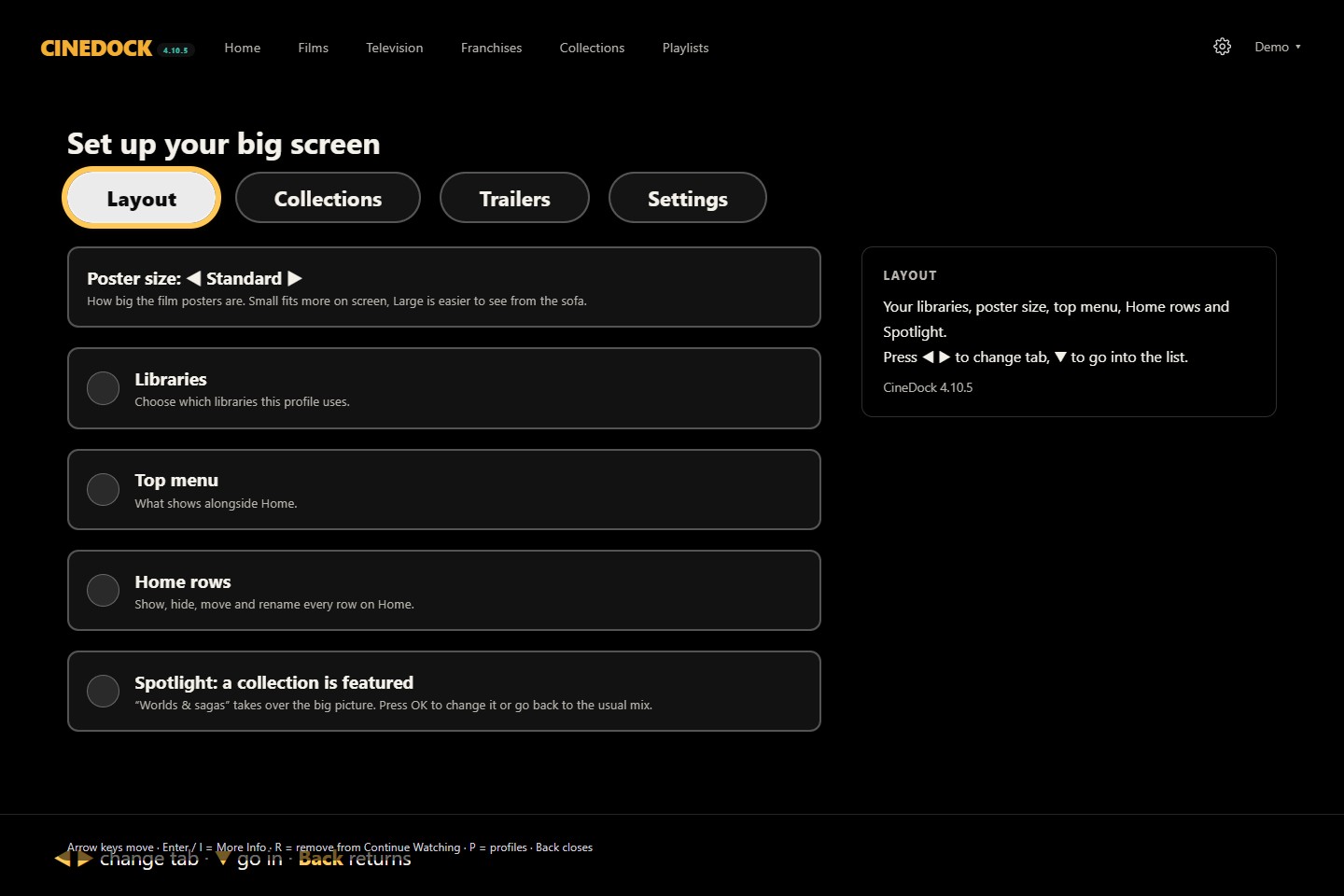
In Collections, make hand-picked or smart collections, use Suggested collections, or put collections and your server’s franchises inside a nested collection. Preview before saving. Put a collection or playlist on Home and feature a collection in Spotlight. Your choices are there on the TV when you next open Kinostrata.
03
Good to know
- Your own network only. The Zinedock page is served by the Zidoo itself, works only on your home network, and asks for the code every time. Nothing goes through the internet.
- It needs Zinedock open. If you close Zinedock on the TV, the page stops. Open Set up from a computer again and use the new code.
- Home does not redraw while you look at it. If the TV is showing Home when you save, leave Home and come back to see the change.
- Online photos and biographies on Zinedock Z9X need your own free TMDB key. The first time you open a film they can take a moment to appear; after that they are remembered.